
Excel Spreadsheet Tips to Customize Your Spreadsheets
One size does not fit all when it comes to spreadsheets. Learn some basic excel spreadsheet tips that will help you customize your accounting spreadsheets to suit your particular needs.
In the following pages, you will learn how to make attractive headers, add and delete columns, add and delete rows, and add and delete accounts.
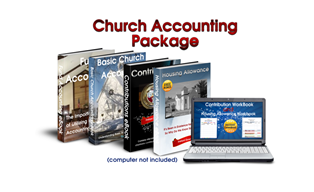
Church Accounting Package
A set of 4 ebooks that covers the following topics...
- Fund Accounting Examples and Explanations
- Setting up a fund accounting system
- Donation management
- Minister compensation and taxes
- Internal controls and staff reimbursements
- Much more - Click here for details


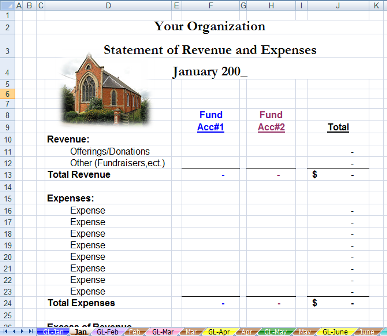
The manual spreadsheet is definitely the easiest spreadsheet to customize. It is not linked together as much as the automatic spreadsheets, so it is simpler to modify.
Note: The following instructions are conformed to the 2007 Excel edition; however, even though the editing tools are not in the same place in the 2003 edition...the step-by-step instructions are general enough to use with any Excel version.
Note: I have made multiple changes to my free spreadsheets.
So the column, row, or cell numbers in your version may not match up
with the numbers in the step-by-step guides.
List of Instructions for Modifying the Manual Accounting Spreadsheets:
- Click here to
add and delete fund accounts on general ledger.
- Click here to add or delete fund accounts on the monthly and annual reports and to add and delete line accounts.
The automatic spreadsheet can also be modified; however, because each page is linked to at least one previous sheet it is much more difficult to customize. So, if you have the time and the patience...
Here is a List of Step-By-Step Guides to Modify the Automatic Accounting Spreadsheets:
- Click here to set up workbook
- Click here to customize your headings.
- Click here to delete or add income or expense accounts.
- Click here to delete or add row accounts: Income and Expense
- Click here to add additional fund accounts to the general ledger.
- Click here to add additional fund accounts to the monthly and annual reports.
- Click here to protect your data
Note: If you had any problems receiving or downloading your free spreadsheets, please check the FAQ page. Hopefully you will find the solution to your problem or question. (If not, it will tell you where to submit your question/problem.
|
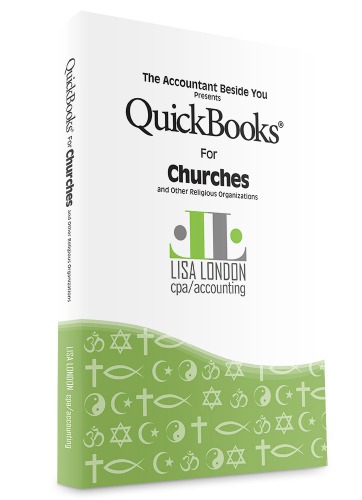
A must have for everyone that has or is thinking of running QuickBooks for their church. Walks you
through QuickBooks from start to finish, complete with examples,
terminology, and everything a busy church administrator or bookkeeper
needs to know. |
 |
Attention: Use Coupon Code: "FCA" for a 10% Discount!
Quick Links: Home | Blog | Newsletter | Free Spreadsheets
Products: Church Accounting Book | Church Accounting Package | Spreadsheet Package
Support: FAQ | Church Accounting FAQ | Contact
Site/Company Info: About | Terms of Use | Site Map

By Vickey Boatright Richardson Copyright © 2008-2024 All rights reserved
